

Plugin Overview
import { LinkCard, CardGrid } from ‘@astrojs/starlight/components’;
notectl ships with 28 built-in plugins. Every editor feature — from bold text to tables — is implemented as a plugin. You can use all of them, a subset, or build your own.
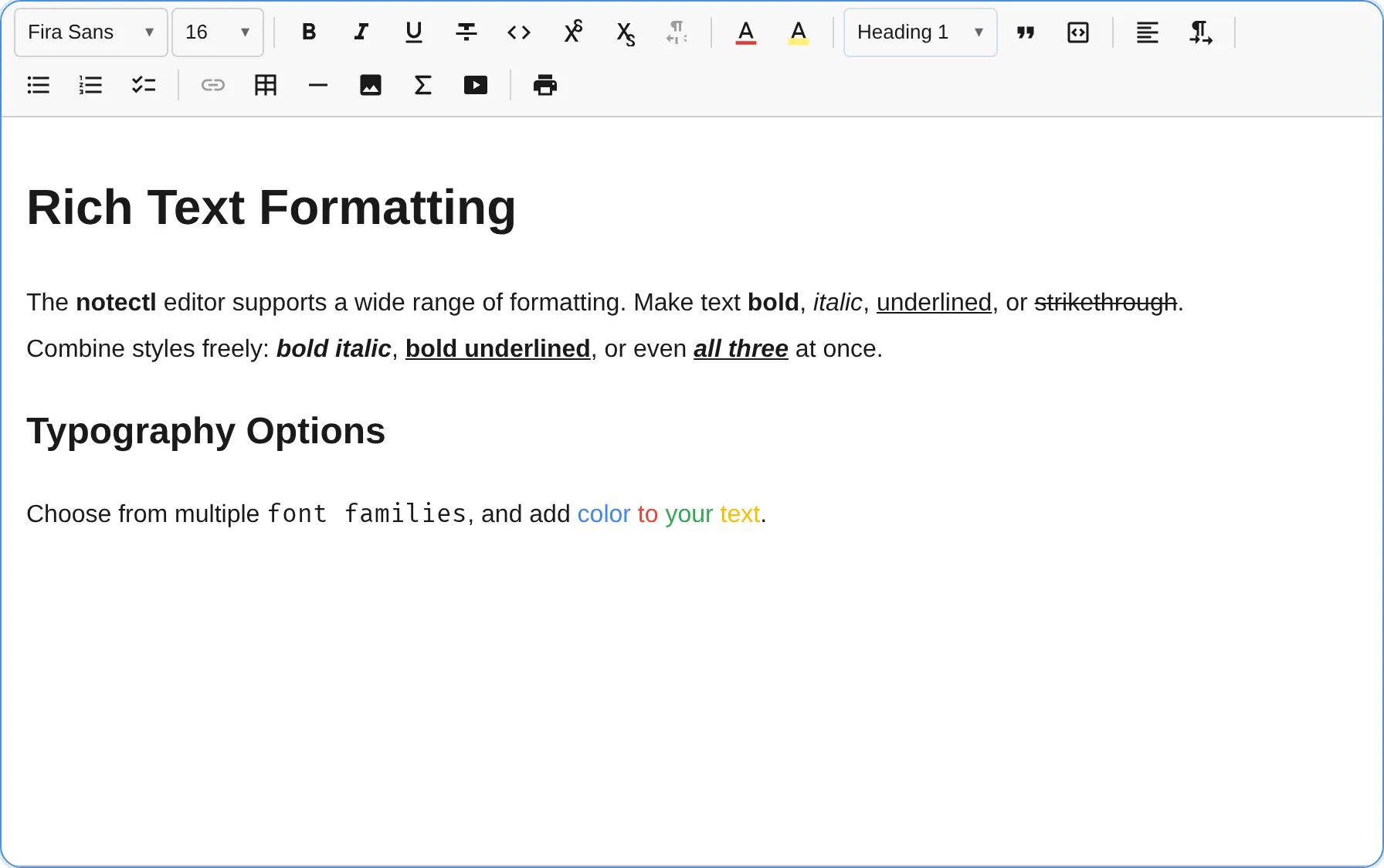
Plugin List
Section titled “Plugin List”| Plugin | ID | Description | Keyboard Shortcuts |
|---|---|---|---|
| TextFormattingPlugin | text-formatting |
Bold, italic, underline | Ctrl+B, Ctrl+I, Ctrl+U |
| HeadingPlugin | heading |
Heading levels 1-6, Title, Subtitle | Ctrl+Shift+1-6 |
| ListPlugin | list |
Bullet, ordered, and checklist | Tab, Shift+Tab |
| LinkPlugin | link |
Hyperlinks | Ctrl+K |
| TablePlugin | table |
Tables with persistent logical column widths, row minimum heights, and cell selection | Tab, Shift+F10, focused separator arrows |
| InlineCodePlugin | inline-code |
Inline code mark with backtick input rule | Ctrl+E |
| CodeBlockPlugin | code-block |
Fenced code blocks with syntax highlighting | ``` (input rule) |
| BlockquotePlugin | blockquote |
Block quotes | Ctrl+Shift+> |
| ImagePlugin | image |
Image blocks with upload support | - |
| VideoPlugin | video |
Privacy-first, a11y-first video embeds (YouTube, Vimeo, Dailymotion) | Mod-Shift-←/→ (resize) |
| FormulaPlugin | formula |
Inline & block math (native MathML, zero-dep) | Ctrl+Shift+E/M, $...$, $$...$$ |
| FontPlugin | font |
Custom font families | - |
| FontSizePlugin | fontSize |
Font size control | Ctrl+Shift++/_ |
| TextColorPlugin | textColor |
Text color picker | - |
| AlignmentPlugin | alignment |
Start, center, end, justify (logical values for RTL support) | Ctrl+Shift+L/E/R/J |
| StrikethroughPlugin | strikethrough |
Strikethrough text | Ctrl+Shift+X |
| SuperSubPlugin | super-sub |
Superscript & subscript | Ctrl+., Ctrl+, |
| HighlightPlugin | highlight |
Text highlight (background color) | - |
| HorizontalRulePlugin | horizontal-rule |
Horizontal divider lines | Ctrl+Shift+H |
| HardBreakPlugin | hard-break |
Line breaks within a block | Shift+Enter |
| PrintPlugin | print |
Print with clean output and HTML export | Ctrl+P |
| ToolbarPlugin | toolbar |
Toolbar UI (auto-created) | - |
| CaretNavigationPlugin | caret-navigation |
Platform-aware keyboard navigation keymaps | Arrow keys, word/line/document movement |
| TextDirectionPlugin | text-direction |
Block-level RTL/LTR direction with toolbar dropdown | Ctrl+Shift+D |
| BidiIsolationPlugin | bidi-isolation |
Inline bidi isolation via <bdi> mark for mixed-direction text |
Ctrl+Shift+B |
| TextDirectionAutoPlugin | text-direction-auto |
Headless middleware: auto-detect, inherit, and preserve block direction | - |
| SmartPastePlugin | smart-paste |
Auto-detect and format structured content on paste | - |
| GapCursorPlugin | gap-cursor |
Virtual cursor at void-block boundaries | Arrow keys (when gap cursor active) |
How Plugins Work
Section titled “How Plugins Work”Each plugin implements the Plugin interface and registers its capabilities during init():
interface Plugin {  /** Unique identifier. */  readonly id: string;  /** Human-readable name. */  readonly name: string;  /** Plugin initialization order (lower = first). */  readonly priority?: number;  /** Required plugin IDs that must be loaded first. */  readonly dependencies?: readonly string[];
  /** Register schema, commands, keymaps, toolbar items. */  init(context: PluginContext): void | Promise<void>;  /** Clean up when the editor is destroyed. */  destroy?(): void | Promise<void>;  /** Called on every state change (for reactive updates). */  onStateChange?(oldState: EditorState, newState: EditorState, tr: Transaction): void;  /** Called when configurePlugin() is used at runtime. */  onConfigure?(config: TConfig): void;  /** Called once after all plugins are initialized. */  onReady?(): void | Promise<void>;  /** Called when the editor's read-only mode changes. */  onReadOnlyChange?(readonly: boolean): void;  /** Returns decorations for the current state. */  decorations?(state: EditorState, tr?: Transaction): DecorationSet;}
What Plugins Can Register
Section titled “What Plugins Can Register”Plugins register through the PluginContext:
| Method | What it does | Example |
|---|---|---|
registerNodeSpec() |
New block types | heading, list_item, table, blockquote |
registerMarkSpec() |
New inline marks | bold, italic, link, textColor |
registerInlineNodeSpec() |
New inline elements | hard_break, emoji, mention |
registerCommand() |
Named commands | toggleBold, insertTable, alignCenter |
registerKeymap() |
Keyboard shortcuts | Mod-B for bold, Mod-K for link |
registerInputRule() |
Text pattern transforms | # to heading, --- to horizontal rule |
registerToolbarItem() |
Toolbar buttons/dropdowns | Bold button, heading dropdown, color picker |
registerBlockTypePickerEntry() |
Block type dropdown entries | Heading levels, paragraph, title |
registerNodeView() |
Custom block renderers | Code block header, image upload UI, table controls |
registerMiddleware() |
Transaction interceptors | Preserve alignment on block type change |
registerService() |
Typed services | ToolbarService, TableSelectionService, TableSizingService |
registerPasteInterceptor() |
Paste content transformers | Smart paste, markdown conversion |
registerFileHandler() |
File paste/drop handlers | Image upload on drag-and-drop |
registerStyleSheet() |
Inject plugin CSS | Table grid styles, code block theme |
announce() |
Screen reader announcements | “Image resized”, “Entered code block” |
executeCommand() |
Execute a registered command | Trigger toggleBold from keyboard handler |
getEventBus() |
Access typed event bus | Emit/subscribe to plugin events |
isReadOnly() |
Check read-only state | Skip mutations in read-only mode |
updateConfig() |
Push runtime config updates | Dynamic plugin reconfiguration |
Plugin Presets
Section titled “Plugin Presets”The fastest way to get all plugins is with createFullPreset():
import { createEditor } from '@notectl/core';import { createFullPreset } from '@notectl/core/presets';
const editor = await createEditor({  ...createFullPreset(),  placeholder: 'Start typing...',});
This gives you all standard plugins organized into 8 toolbar groups. Override individual plugin configs as needed:
const editor = await createEditor({ ...createFullPreset({ list: { interactiveCheckboxes: true } }),});See the Plugin Presets guide for details.
Plugin Composition
Section titled “Plugin Composition”Use plugins with the toolbar config for a visual toolbar:
const editor = await createEditor({ toolbar: [ [new TextFormattingPlugin()], // Group 1: B I U [new HeadingPlugin()], // Group 2: Heading dropdown [new ListPlugin(), new BlockquotePlugin()], // Group 3: Lists + blockquote [new LinkPlugin(), new TablePlugin()], // Group 4: Link + table [new CodeBlockPlugin()], // Group 5: Code blocks ],});Or use plugins for headless mode (no toolbar):
const editor = await createEditor({ plugins: [ new TextFormattingPlugin(), new HeadingPlugin(), ],});Auto-Registration
Section titled “Auto-Registration”TextFormattingPlugin, CaretNavigationPlugin, and GapCursorPlugin are auto-registered with default settings if not explicitly provided. All other plugins must be added manually.