

Table Plugin
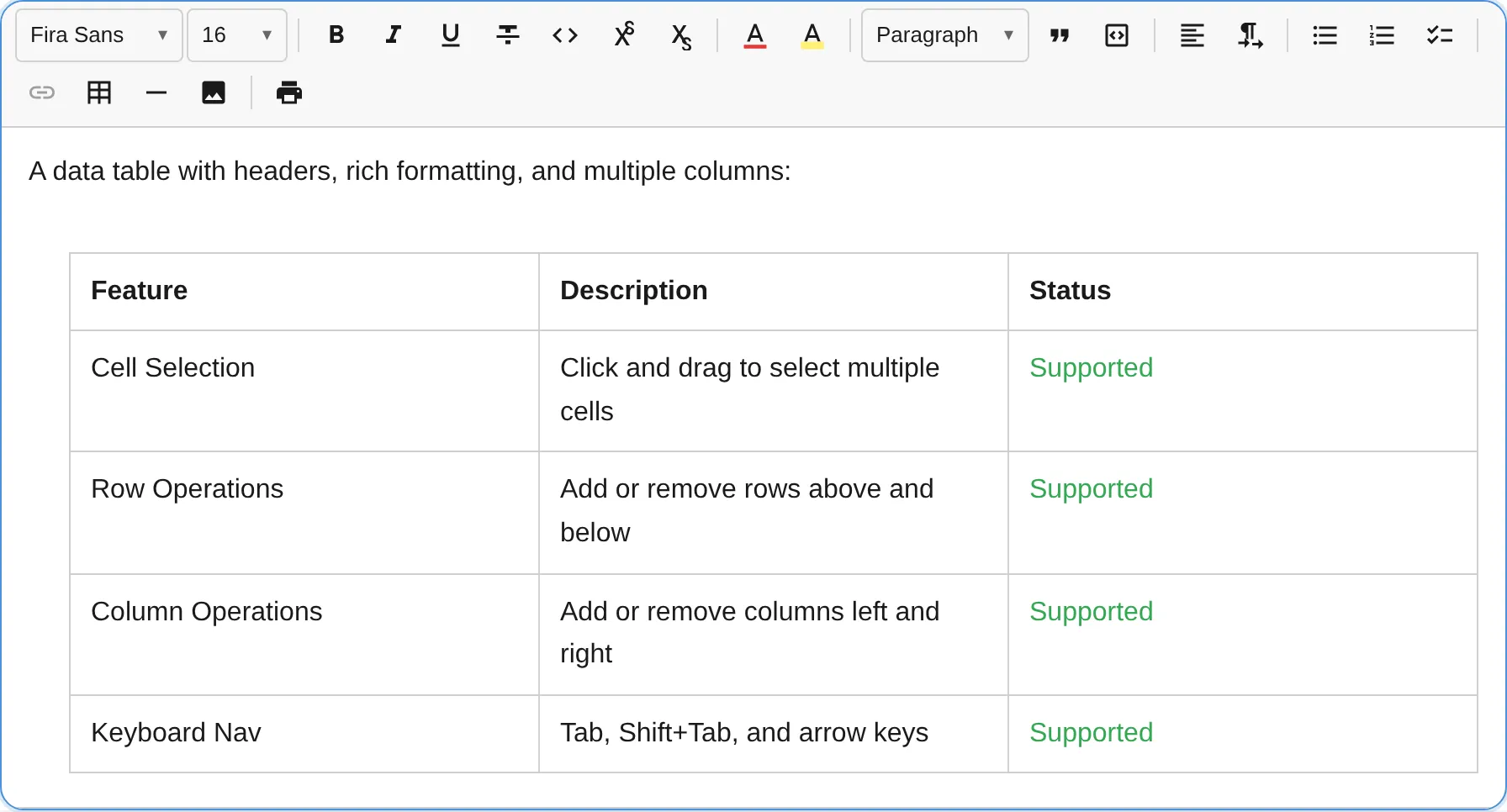
The TablePlugin provides comprehensive table support including a grid picker for insertion, a fully accessible context menu, border color customization, multi-cell selection, interactive visual controls, and complete keyboard navigation.
import { TablePlugin } from '@notectl/core/plugins/table';
new TablePlugin()// or with custom picker size:new TablePlugin({ maxPickerRows: 10, maxPickerCols: 10 })
Configuration
Section titled “Configuration”interface TableConfig { /** Maximum rows in grid picker. Default: 8 */ readonly maxPickerRows?: number; /** Maximum columns in grid picker. Default: 8 */ readonly maxPickerCols?: number; /** Locale for all user-facing strings. Defaults to auto-detected language. */ readonly locale?: TableLocale;}Locale Override
Section titled “Locale Override”Each plugin resolves its locale automatically from the editor’s global locale setting. To override the table locale independently:
import { TablePlugin, loadTableLocale } from '@notectl/core/plugins/table';
const tableDe = await loadTableLocale('de');new TablePlugin({ locale: tableDe })
See the Internationalization guide for details on global and per-plugin locale configuration.
Commands
Section titled “Commands”| Command | Description | Returns |
|---|---|---|
insertTable | Insert a table (via grid picker selection) | boolean |
addRowAbove | Insert row above current cell | boolean |
addRowBelow | Insert row below current cell | boolean |
addColumnLeft | Insert column to the left of current cell | boolean |
addColumnRight | Insert column to the right of current cell | boolean |
deleteRow | Delete the row containing the cursor | boolean |
deleteColumn | Delete the column containing the cursor | boolean |
deleteTable | Delete the entire table | boolean |
selectTable | Select the entire table | boolean |
resetTableBorderColor | Reset border color to theme default | boolean |
// Insert a table programmaticallyeditor.executeCommand('insertTable');
// Modify table structureeditor.executeCommand('addRowBelow');editor.executeCommand('deleteColumn');
// Reset border coloreditor.executeCommand('resetTableBorderColor');
Context Menu
Section titled “Context Menu”Right-click inside any table cell (or press Shift+F10) to open an accessible context menu with all table operations.
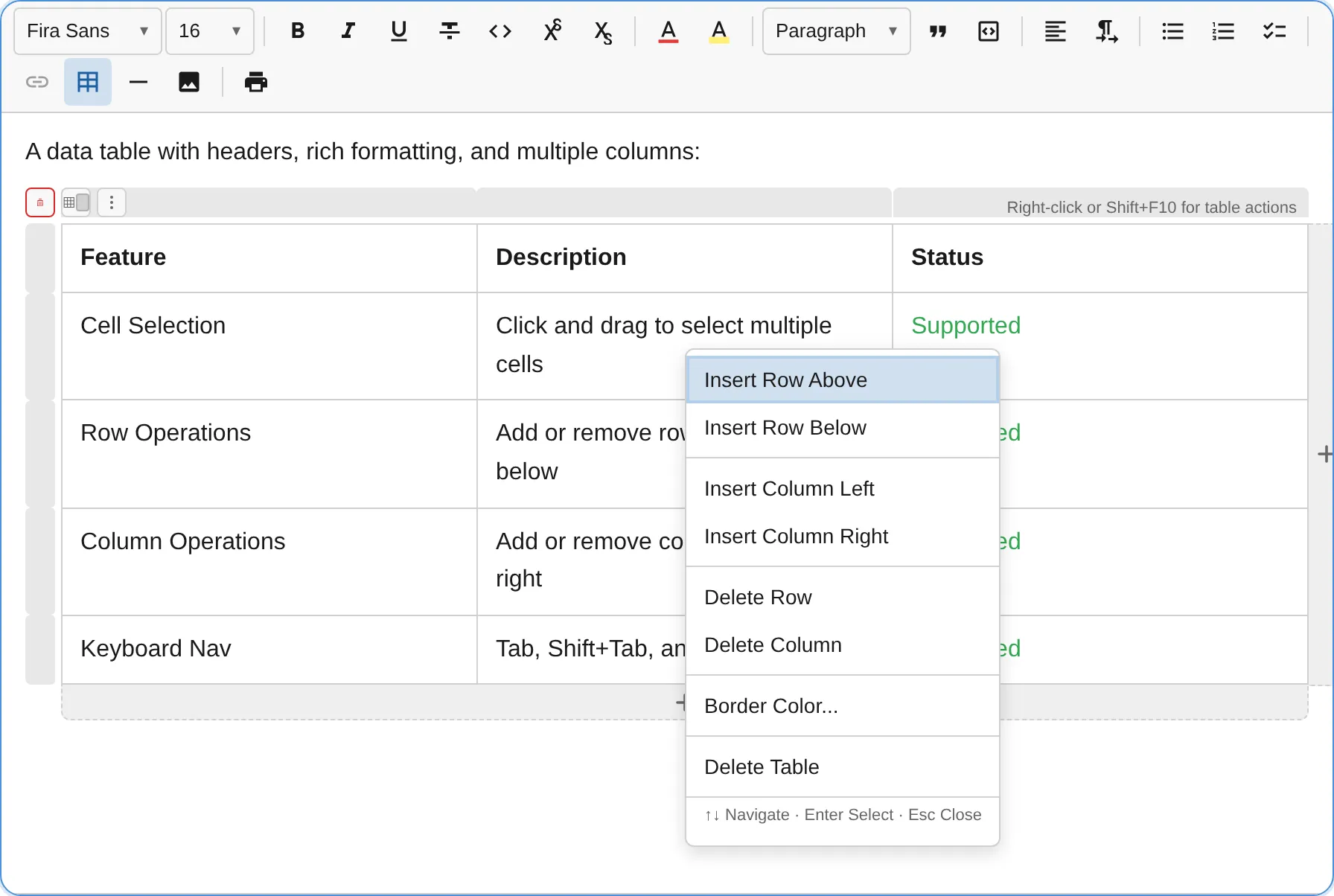
The context menu provides:
- Insert Row Above / Below — add rows relative to the cursor
- Insert Column Left / Right — add columns relative to the cursor
- Delete Row / Column — remove the current row or column
- Border Color — opens a color picker submenu
- Delete Table — remove the entire table
Keyboard Navigation
Section titled “Keyboard Navigation”The context menu is fully keyboard-accessible following WAI-ARIA menu patterns:
| Key | Action |
|---|---|
ArrowDown / ArrowUp | Move focus between menu items |
Enter / Space | Activate the focused item |
ArrowRight | Open submenu (on Border Color item) |
ArrowLeft | Close submenu, return to parent |
Home / End | Jump to first / last menu item |
Escape | Close the menu |
Border Colors
Section titled “Border Colors”Customize table border colors through the context menu or the border color button in the table controls overlay.
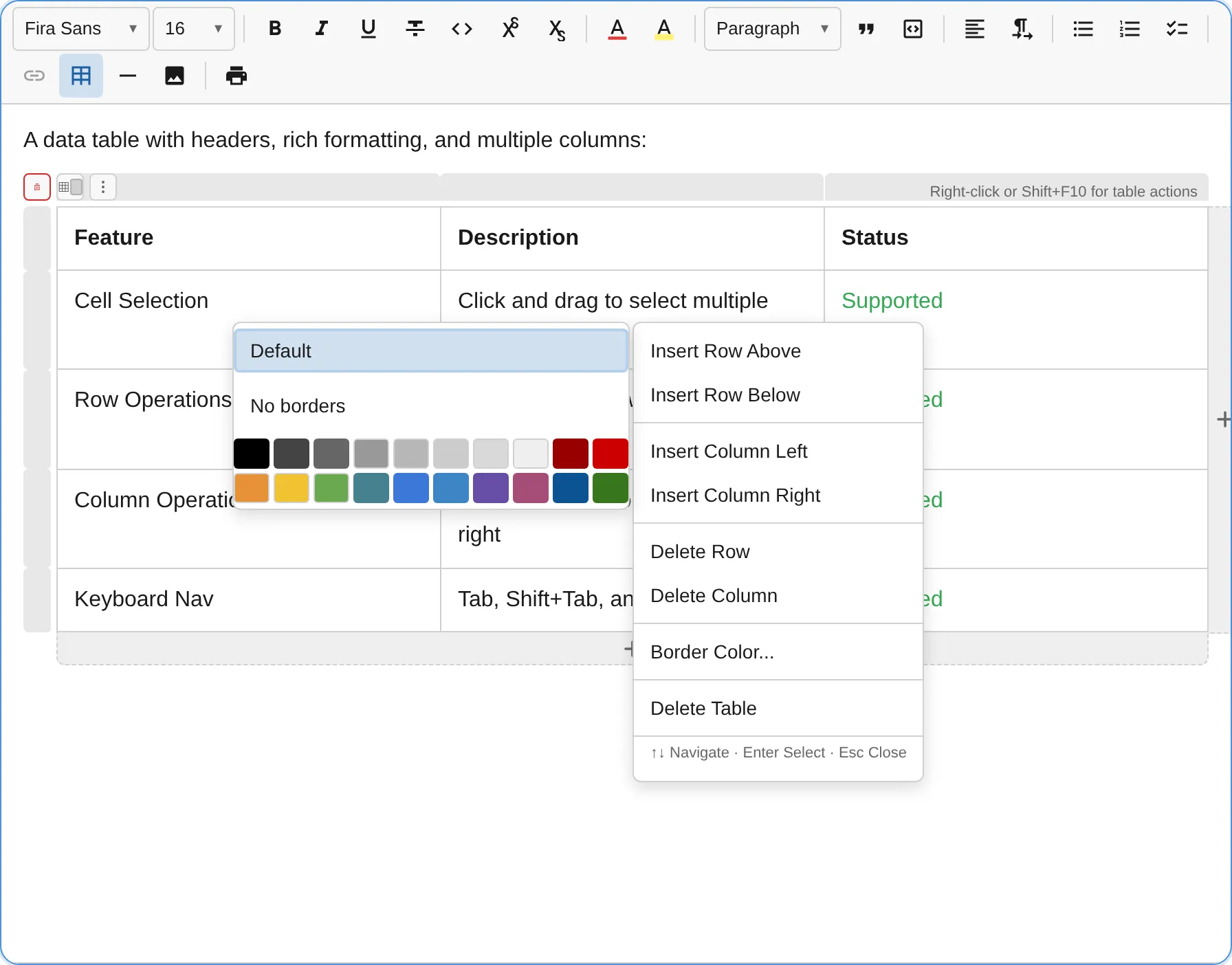
The border color picker provides:
- Default — reset to the theme’s default border color
- No borders — remove all visible borders
- Color grid — 20 subdued, border-appropriate colors (grays, earth tones, muted hues)
The color grid supports full keyboard navigation with arrow keys, Home/End, Enter to select, and Escape to close.
Programmatic Border Color
Section titled “Programmatic Border Color”import { TableSelectionServiceKey } from '@notectl/core/plugins/table';
// Reset to defaulteditor.executeCommand('resetTableBorderColor');Interactive Controls
Section titled “Interactive Controls”When hovering over a table, interactive overlay controls appear:
- Column handles — appear above each column. Click to select; each handle has a delete button
- Row handles — appear to the left of each row. Click to select; each handle has a delete button
- Add row zone — a button below the table to append a new row
- Add column zone — a button to the right of the table to append a new column
- Insert lines — hover between rows or columns to see a blue insert line with a
+button. Click to insert a row or column at that position - Actions button — opens the context menu
- Border color button — quick access to the border color picker
- Delete table button — remove the entire table
Keyboard Shortcuts
Section titled “Keyboard Shortcuts”| Shortcut | Action |
|---|---|
Tab | Move to next cell (wraps to next row, adds row at end) |
Shift+Tab | Move to previous cell |
Shift+F10 | Open context menu |
Backspace | Delete content or merge with previous cell |
Delete | Delete content or merge with next cell |
Escape | Exit table selection |
| Arrow keys | Navigate between cells |
Toolbar
Section titled “Toolbar”The table toolbar button shows a grid picker popup. Hover over cells to select the table dimensions (e.g., 3x4), then click to insert. The label updates dynamically to show the current hover dimensions.
Node Specs
Section titled “Node Specs”| Type | HTML Tag | Attributes | Description |
|---|---|---|---|
table | <table> | borderColor?: string | Table container |
table_row | <tr> | - | Table row |
table_cell | <td> | colspan?: number, rowspan?: number | Table cell (allows paragraph, list_item, heading, blockquote, image, horizontal_rule) |
Multi-Cell Selection
Section titled “Multi-Cell Selection”The table plugin supports selecting multiple cells by click-and-drag. Selected cells are highlighted and can be operated on as a group (e.g., delete all selected cells’ content).
TableSelectionService
Section titled “TableSelectionService”Access the selection service programmatically:
import { TableSelectionServiceKey } from '@notectl/core/plugins/table';
const service = editor.getService(TableSelectionServiceKey);
Accessibility
Section titled “Accessibility”The table plugin follows WAI-ARIA best practices:
- Tables are announced with dimensions (e.g., “Table with 3 rows and 4 columns”)
- A description hint tells screen readers how to access table actions
- All row/column operations announce their result (e.g., “Row inserted above”)
- Border color changes are announced (e.g., “Table border color set to Blue”)
- The context menu uses
role="menu"withrole="menuitem"for each action - The border color grid uses
role="grid"withrole="gridcell"for each swatch - All interactive elements follow roving tabindex patterns
Custom Node Views
Section titled “Custom Node Views”Tables use custom NodeView implementations for:
- Table wrapper with horizontal scroll support for wide tables
- Row rendering with proper
<tr>element management - Cell rendering with editable content areas inside
<td>elements