

Paper Size
notectl supports configurable paper sizes for WYSIWYG page layout. When paperSize is set, the editor content area renders at the exact paper width so that what you see on screen matches the print output 1:1.
Paper Mode vs Fluid Mode
Section titled “Paper Mode vs Fluid Mode”By default, the editor uses a fluid layout that fills its container. When you set a paperSize, the editor switches to paper mode — the content area takes on the exact paper dimensions, centered on a gray viewport with a page-like shadow.
Paper Mode (DIN A4)
Section titled “Paper Mode (DIN A4)”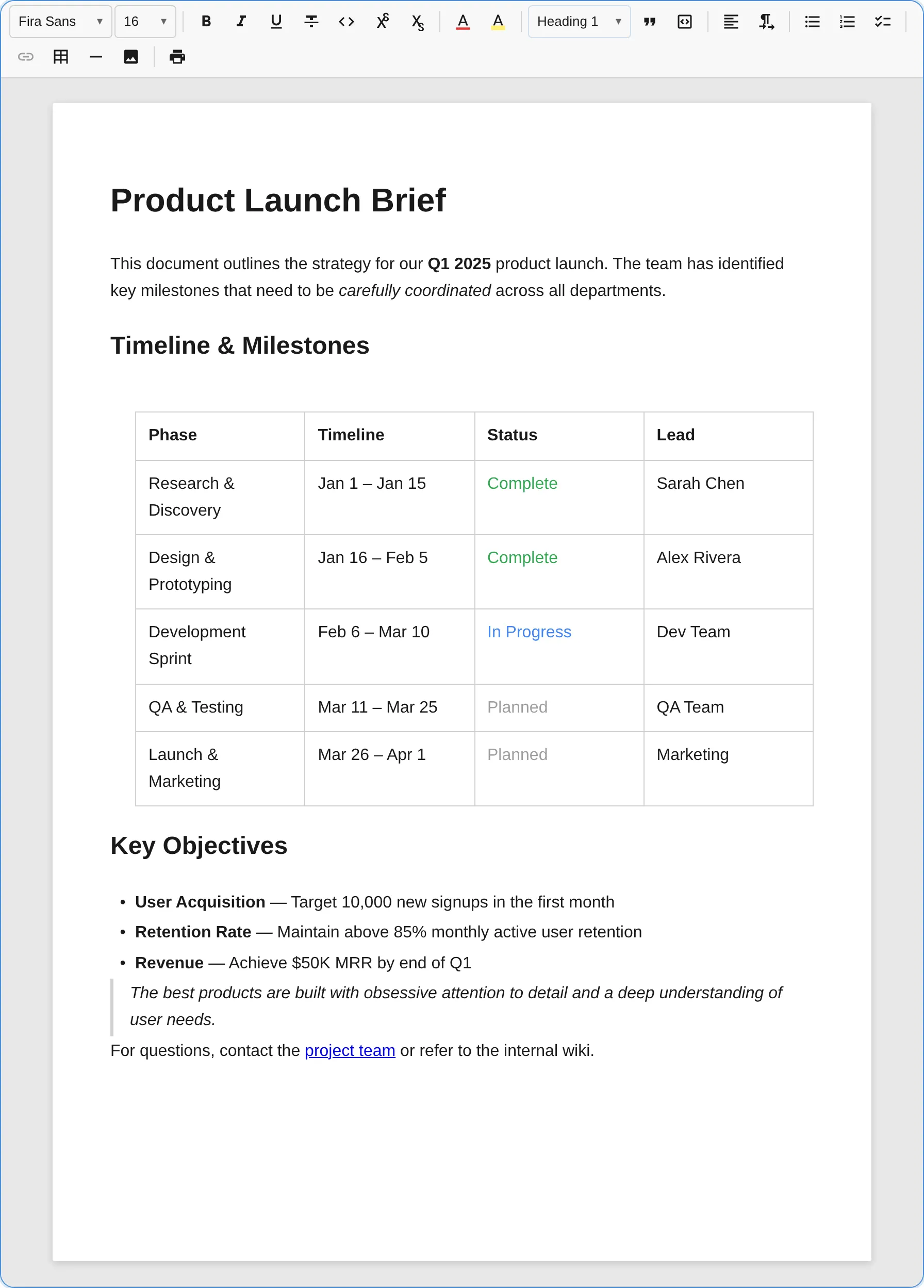
Fluid Mode (no paper size)
Section titled “Fluid Mode (no paper size)”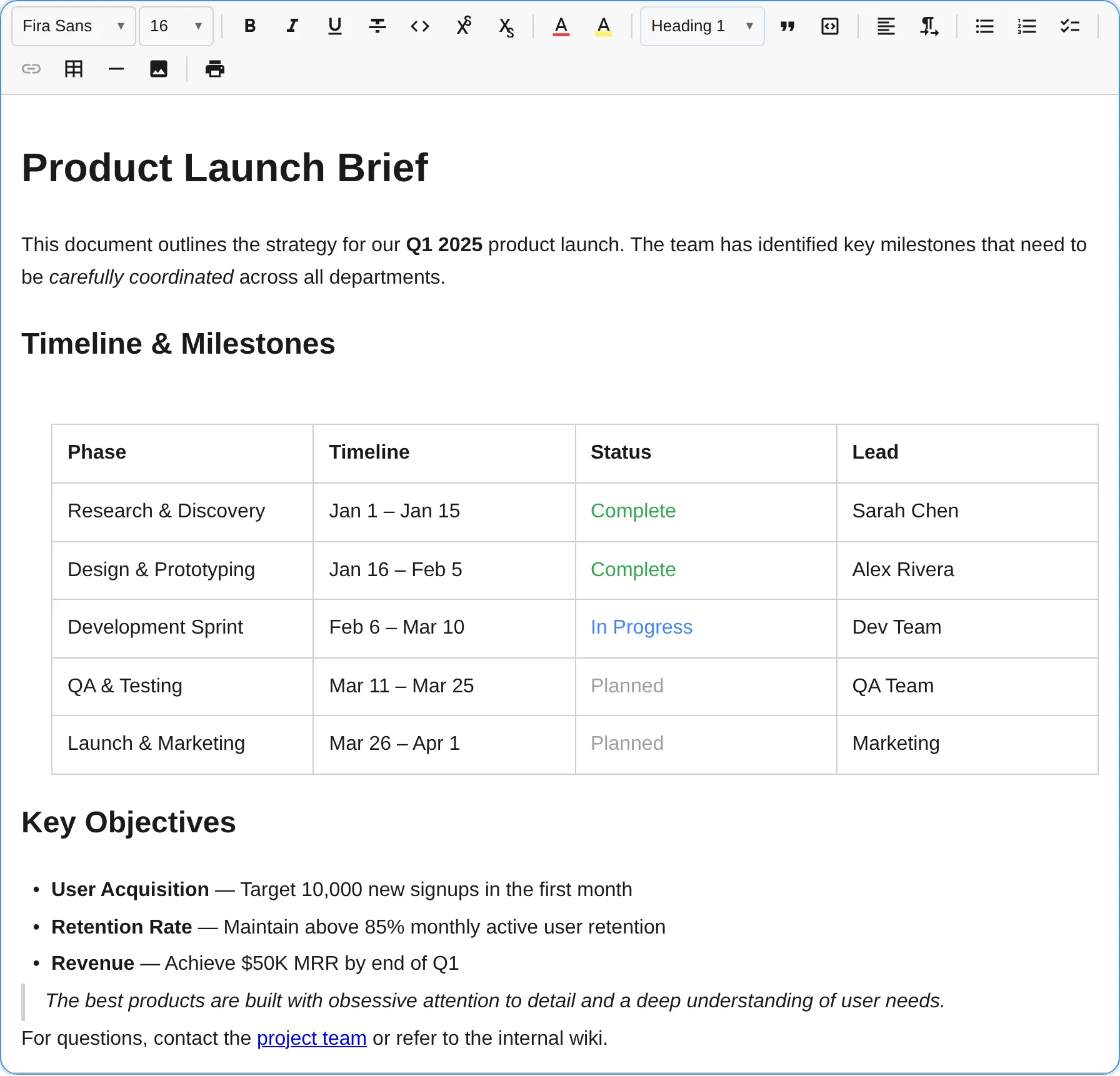
Available Paper Sizes
Section titled “Available Paper Sizes”| Preset | Value | Dimensions | Pixels (96 DPI) |
|---|---|---|---|
PaperSize.DINA4 | 'din-a4' | 210 x 297 mm | 794 x 1123 px |
PaperSize.DINA5 | 'din-a5' | 148 x 210 mm | 559 x 794 px |
PaperSize.USLetter | 'us-letter' | 215.9 x 279.4 mm | 816 x 1056 px |
PaperSize.USLegal | 'us-legal' | 215.9 x 355.6 mm | 816 x 1344 px |
Configuration
Section titled “Configuration”At Creation
Section titled “At Creation”import { createEditor, PaperSize } from '@notectl/core';
const editor = await createEditor({ paperSize: PaperSize.DINA4,});HTML Attribute
Section titled “HTML Attribute”<notectl-editor paper-size="din-a4"></notectl-editor>Runtime Change
Section titled “Runtime Change”// Switch to US Lettereditor.configure({ paperSize: PaperSize.USLetter });
// Read the current paper sizeconst size = editor.getPaperSize(); // 'us-letter' | undefinedScale-to-Fit
Section titled “Scale-to-Fit”When the editor’s container is narrower than the paper width, the content automatically scales down to fit — similar to how Google Docs behaves. The scale factor is calculated as:
scale = min(1, availableWidth / paperWidth)When the container is wider than the paper, the page is centered at full size with no scaling.
WYSIWYG Print Integration
Section titled “WYSIWYG Print Integration”Paper mode is designed to work seamlessly with the Print Plugin. When paperSize is configured on the editor, it automatically flows into the print output:
- The
@pageCSS rule uses the matching paper size keyword (e.g.A4,letter) - Content padding matches exactly between screen and print
- Typography (font family, size, line height) is preserved in the print output
This ensures that line breaks, text flow, and page layout are identical between the editor and the printed document.
import { createEditor, PaperSize } from '@notectl/core';import { PrintPlugin } from '@notectl/core/plugins/print';
const editor = await createEditor({  paperSize: PaperSize.DINA4,  toolbar: [    // ... other plugins    [new PrintPlugin()],  ],});
// Print — the paper size is automatically appliededitor.executeCommand('print');
You can also override the paper size for a specific print call:
import { PRINT_SERVICE_KEY } from '@notectl/core/plugins/print';
const printService = editor.getService(PRINT_SERVICE_KEY);printService.print({ paperSize: PaperSize.USLetter });
Paper Margins
Section titled “Paper Margins”The paper mode uses fixed margins for consistent WYSIWYG layout:
| Constant | Value | Description |
|---|---|---|
PAPER_MARGIN_TOP_PX | 48px | Top margin inside the paper surface |
PAPER_MARGIN_HORIZONTAL_PX | 56px | Left and right margins inside the paper surface |
PAPER_VIEWPORT_PADDING_PX | 24px | Padding between the viewport edge and the paper |
These are exported from @notectl/core for use in custom layouts or print stylesheets.
Exports
Section titled “Exports”All paper-size-related exports from @notectl/core:
| Export | Kind | Description |
|---|---|---|
PaperSize | Const object | DINA4, DINA5, USLetter, USLegal |
getPaperDimensions(size) | Function | Returns PaperDimensions with mm and px values |
getPaperCSSSize(size) | Function | Returns CSS @page size keyword ('A4', 'letter', etc.) |
PaperDimensions | Type | { widthMm, heightMm, widthPx, heightPx } |
PAPER_MARGIN_TOP_PX | Constant | Top margin in pixels |
PAPER_MARGIN_HORIZONTAL_PX | Constant | Horizontal margin in pixels |
PAPER_VIEWPORT_PADDING_PX | Constant | Viewport padding in pixels |